
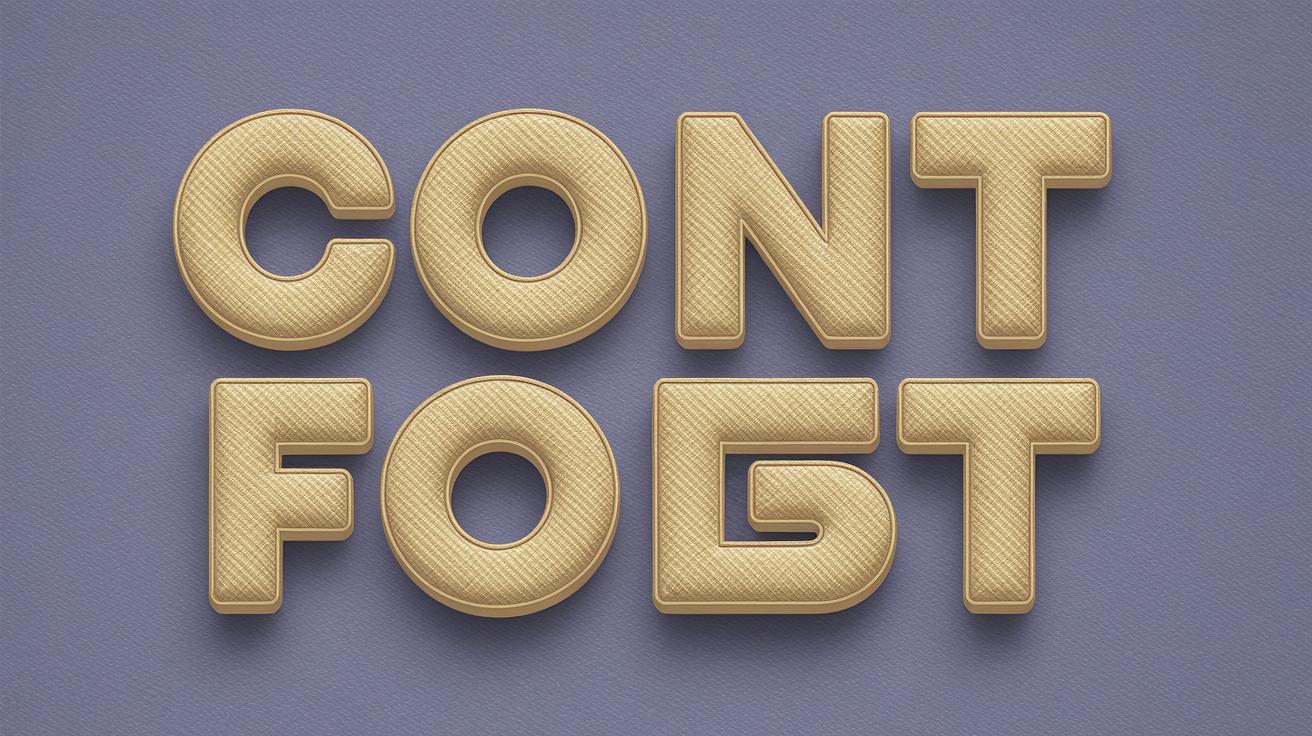
Exploring Creative Free Photoshop Text Effects: A Guide
Photoshop is a powerhouse when it comes to creating dynamic and captivating text effects that enhance graphic designs. Whether you’re a seasoned designer or a beginner, mastering a few key text effects can be transformative for your projects. In this guide, we’ll explore three popular free text effects available in Photoshop: Colorful Chrome, Glossy Plastic, and Gold. Each offers unique visual appeal and can take your designs to the next level. We’ll delve into the intricacies of creating these effects, providing step-by-step details and tips to leverage them in your work. Whether you’re designing logos, posters, or digital art, mastering these effects will add depth and style to your text, impressing clients and audiences alike.
Colorful Chrome Text Effect
The Colorful Chrome text effect is a classic in graphic design, offering a vibrant, metallic sheen that captures attention immediately. This effect mimics the reflective quality of chrome, while infusing a spectrum of colors that can be adjusted to fit any design scheme. To achieve this look in Photoshop, the process centers around using layer styles, specifically the blending options. By manipulating gradient overlays and inner shadows, designers can create a simulated chrome look that is both realistic and striking.
Start by choosing a bold font, typically sans-serif, which complements the chrome aesthetics. Apply a gradient overlay that transitions smoothly between a series of complementary colors. Adjust the gradient scale to ensure that it spreads evenly across the text. Next, enhance the 3D effect of the chrome by adding an inner shadow; a slight offset along with a low opacity will suffice to give the text more depth. With these techniques, the Colorful Chrome effect becomes a versatile tool, adaptable to various design requirements and creative visions.
Free Glossy Plastic Text Effect PSD
The Glossy Plastic text effect gives text a sleek, shiny surface reminiscent of polished plastic, which is increasingly popular in modern design. Fortunately, Photoshop provides Free PSD resources that make applying this effect straightforward even for beginners. The downloadable PSD contains all necessary elements pre-configured with customizable settings. This allows designers to modify and tweak aspects such as color, gloss intensity, and reflection size without starting from scratch.
In the PSD file, the effect is achieved through multiple layered styles. A combination of bevel and emboss with subtle contours simulates the effect of light on a plastic surface. Additionally, the use of gradients fine-tunes the glossiness, while reflection effects contribute to its lifelike appearance. These layers are editable, offering control over the final outcome. Designers appreciate the ease of use and adaptability of this effect, which can be fine-tuned to match a wide range of styles and color palettes.
Create a Gold Text Effect in Photoshop 2025
The Gold Text effect remains a timeless choice for adding elegance and luxury to any text. In Photoshop 2025, this effect has been made even more accessible with improved tools and functionalities. The process involves applying a combination of gradient overlays, layer styles, and textures that replicate the rich nuances of gold. Photoshop’s advanced gradient editor plays a critical role here, allowing for precise color adjustments that emulate the subtle hues found in real gold objects.
Start by selecting a sturdy serif or handwritten font that aligns with the opulent feel of gold. Create a new gradient, blending shades of yellow, orange, and white to achieve that metallic sheen. Use the bevel and emboss feature to add dimension, adjusting the highlight and shadow modes to mimic how light would hit actual gold. Enhancements can be made by incorporating noise to imitate texture. Through these detailed techniques, designers can achieve a gold effect that stands the test of time in sophistication and style.
Summary of Main Points
| Effect | Description | Key Techniques |
|---|---|---|
| Colorful Chrome Text Effect | Combines chrome’s metallic sheen with a vibrant color spectrum for eye-catching designs. | Layer styles, gradient overlays, inner shadows |
| Free Glossy Plastic Text Effect PSD | Emulates a slick, shiny plastic finish using ready-made PSD resources. | Bevel and emboss, gradients, reflection effects |
| Create a Gold Text Effect in Photoshop 2025 | Timeless and luxurious, simulating the appearance of polished gold. | Gradient overlays, bevel and emboss, noise texture |

